Soil Moisture Sensor

Real-time soil moisture monitoring for your garden

Installation

Soildrops Soil Moisture Sensor Installation Tutorial

Estimated installation Time: 3 mins each sensor

The sensor can transmit up to 100 feet without major obstacles, and 60–80 feet when transmitting through a house. A booster can extend the range to over 300 feet. For best performance, place the booster within 50 feet of the sensor. Booster (a range extender placed between the controller and distant sensors)s can be purchased at Soildrops.com.

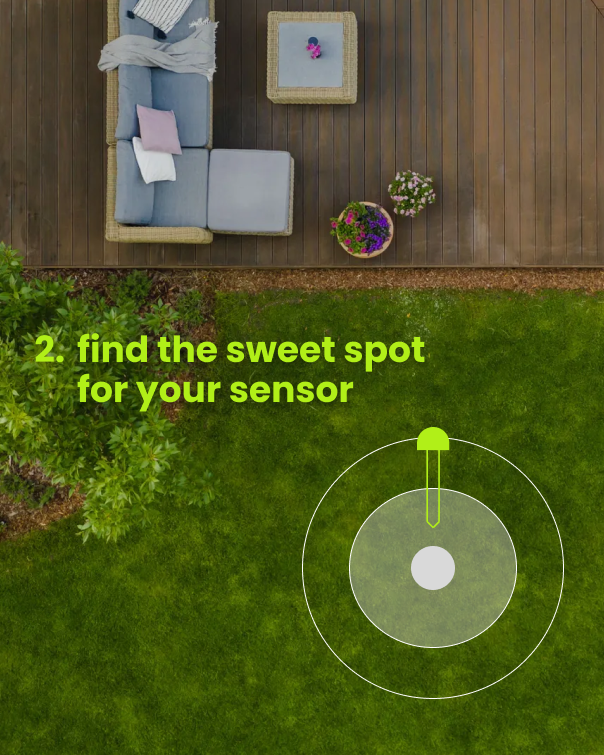
Step 1: Place Your Sensor

Sprinkler Zones: Place in the center of the zone.

Dripline Zones: Place under a drip hole at the midpoint for accurate readings.


Pro Tips:

  • Place near the controller for the strongest signal.

  • Avoid having concrete or metal doors between the controller and sensor.

  • Do not place the sensor next to footings, concrete, rocks, or bricks.

  • Position the sensor at the highest point in the area whenever possible.
SetUp1-1.png

Step 2: Moisten Soil

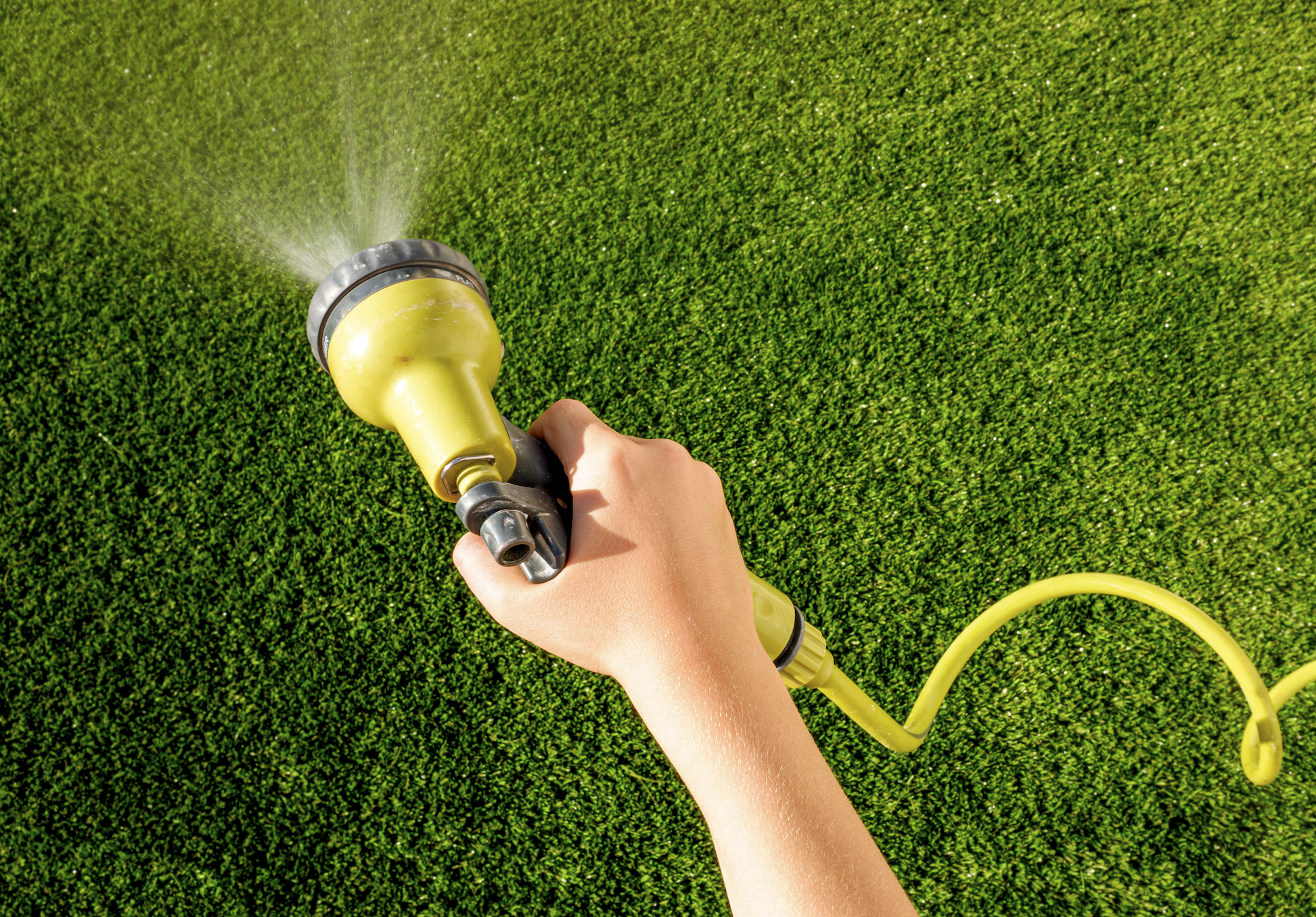
  1. Avoid damage by inserting into moist soil.
  2. Water the area manually or, use QuickRun (3-5 min) in the app.
Screenshot 2025-03-08 at 4.55.38 PM.png

Step 3: Pair Your Sensor

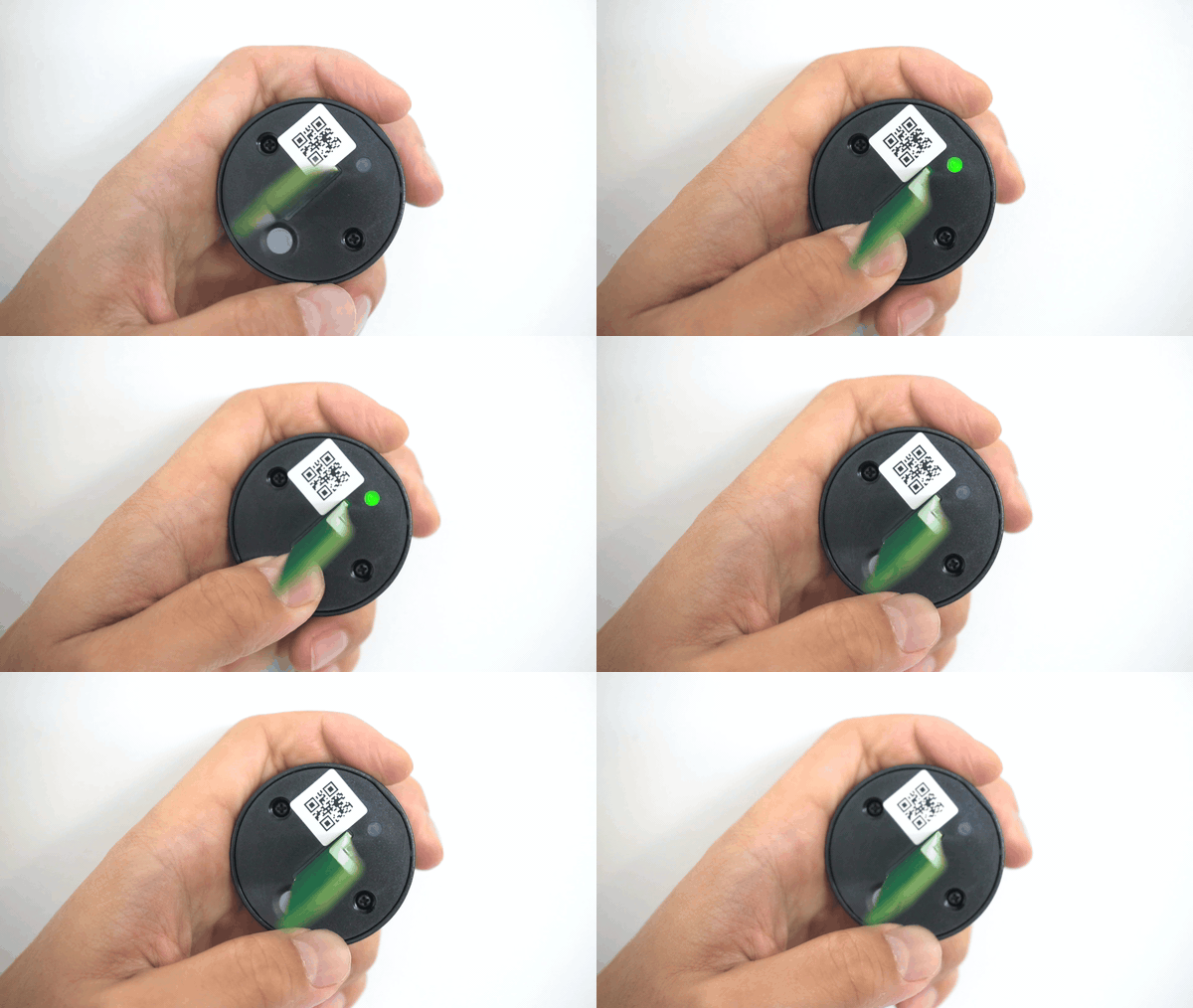
  1. Near controller, hold button (5s) until LED blinks.
  2. In the app, tap 'Add Sensor' and scan the QR code.
  3. Wait for pairing confirmation.

sensor_pairing.gif

Step 4: Sensor Insertion

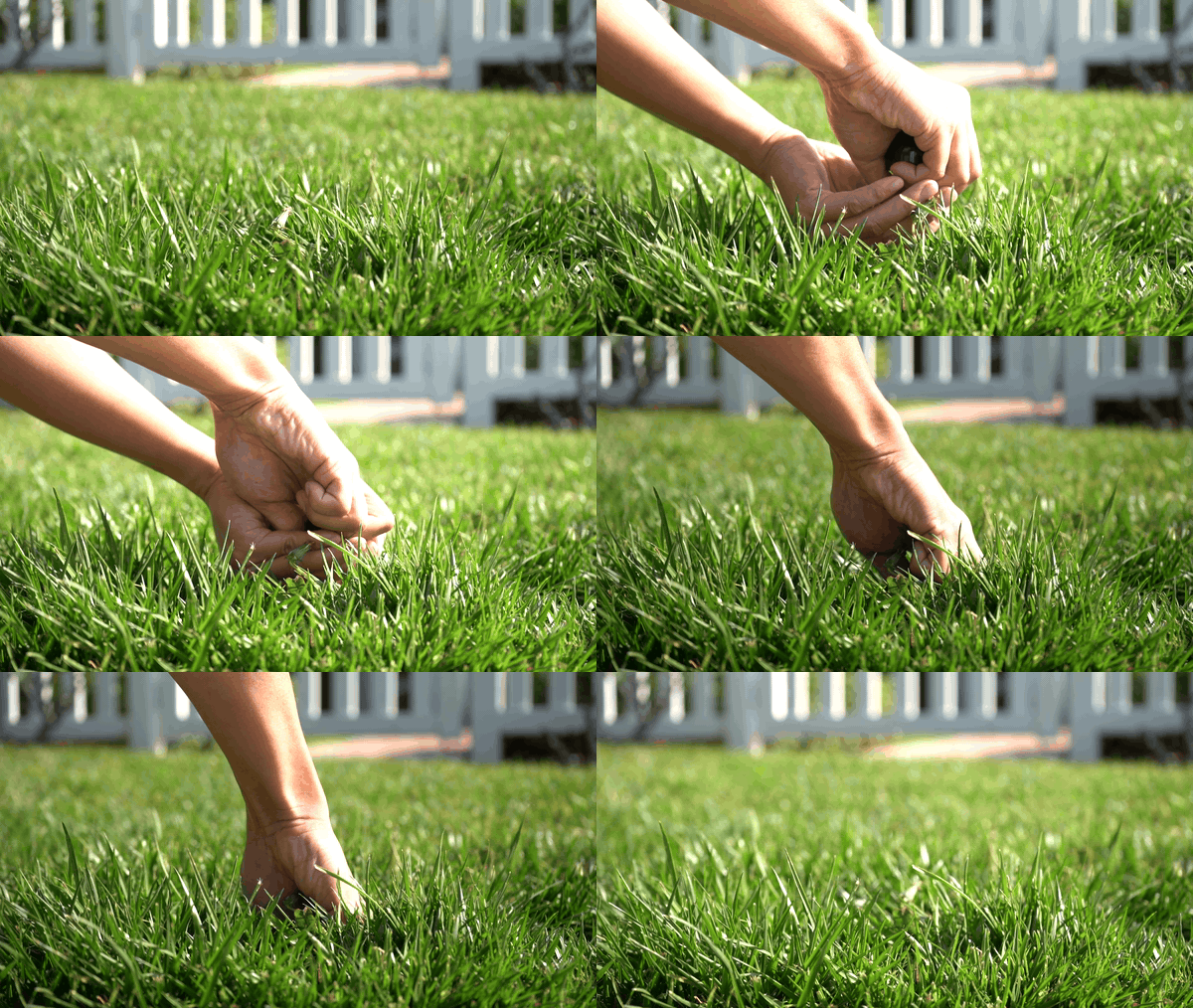
  1. Gently push sensor into soil. Stop and move if you feel resistance.
  2. Push sensor down until top is flush with soil. 
sensor_insertion.gif

Step 5: Wait for Data

  1. Initial 0% moisture is normal – don't worry! You’ll recieve an accurate reading within 10 minutes.Congratulations, your sensor is now monitoring soil moisture.
  2. If no data appears after 10 minutes, try moving the sensor to a different spot for a better signal.

Pairing a Soil Moisture Sensor

Soil moisture sensors give your Soildrops system real-time data about how wet the soil actually is — not an estimate, but a measurement. This unlocks Autopilot mode, where the AI makes watering decisions based on what's happening underground.

Do You Need a Sensor?

Not necessarily. Soildrops works without sensors in Smart or Manual mode. But adding a sensor gives you:

  • Autopilot mode: Fully AI-driven watering based on actual soil conditions.
  • More accurate watering: The system knows exactly when your soil needs water.
  • Maximum water savings: No overwatering, no guessing, no wasting water after rain.

Pairing During Initial Setup

If you selected "Controller + Sensors" during setup, the app walks you through pairing a sensor to each zone. Follow the on-screen instructions below.

Adding a Sensor Later

Important: The sensor only stays in pairing mode for 30 seconds, and pairing mode drains the battery. Get everything ready in the app before pressing the sensor button.
  1. Go to System Overview in the app.
  2. Find the zone card where you want to add a sensor.
  3. Tap "Add Sensor To This Zone."
  4. When you see the QR code scanner screen, get your sensor and phone ready — but don't press the sensor button yet.
  5. Now press and hold the button on the sensor for 5 seconds to enter pairing mode. The LED will start blinking.
  6. Immediately scan the QR code on the sensor using your phone's camera.
  7. The sensor pairs automatically — you'll see a confirmation when it's connected.
Tip: If the 30-second window expires before pairing completes, just press and hold the button for 5 seconds again to re-enter pairing mode.

What You'll See on Your Zone Card

  • Battery %: Typically lasts 1–2 years.
  • Signal strength: Green (strong), yellow (fair), or red (weak).
  • Current moisture reading: Real-time data from the soil.
Replacing a sensor: If a sensor dies or malfunctions, tap "Replace" on the zone detail screen and scan the new sensor's QR code. The new one takes over immediately.

How long does installation take?

Controller: About 10–15 minutes for most setups — mount it, connect your irrigation wires, scan the QR code, and connect to Wi-Fi. The app walks you through every step.

Sensor: About 3 minutes per sensor — insert in the ground at root level and pair via QR code. Quick and simple.

Where should I place the sensor?

Place the sensor in a representative spot within the zone — somewhere that reflects the typical soil and moisture conditions for that area. Avoid edges, dry spots near pavement, or soggy spots near downspouts. The goal is to get a reading that accurately represents the whole zone.

Push the sensor into the soil at root level for your primary plants (usually 3–4 inches for lawns, deeper for shrubs and trees). Make sure the sensor tip is in full contact with the soil, not sitting in an air pocket.

Tip: If you're not sure where to put it, place it about 1/3 of the way from the nearest sprinkler head. This tends to represent average moisture conditions for the zone.

Usage & Care

Sensor Health and Management

Keep an eye on your sensors to make sure they're reporting accurately and staying connected.

Checking Sensor Status

Each zone card in the app shows the sensor's battery level and signal strength. Green is good, yellow means it's getting weak, red means action is needed.

Signal Strength Tips

  • The sensor communicates with the controller up to 100 feet without obstacles, and about 60–80 feet through walls or dense vegetation.
  • If signal is weak, try repositioning the sensor closer to the controller, or move the controller's antenna to face the sensor.

Battery Life

Sensor batteries typically last 1–2 years. When the battery indicator shows low, plan to replace it within the next couple of weeks. Sensors use a standard coin cell battery that's easy to swap.

Maintenance habit: Check sensor status in the app at the start of each watering season. A quick glance at battery and signal levels prevents surprises mid-summer.

Delete Sensor & Replace Sensor

If a sensor needs replacing — dead battery, damage, or you're reorganizing zones — here's how to handle it.

Replacing a Sensor

  1. Open the zone detail view for the zone with the sensor you're replacing.
  2. Tap "Replace Sensor."
  3. Scan the QR code on the new sensor.
  4. The new sensor takes over immediately — no reconfiguration needed.

Deleting a Sensor

  1. Open the zone detail view.
  2. Tap the sensor settings.
  3. Tap "Delete Sensor."

Removing a sensor means that zone can no longer use Autopilot mode — it will switch to Smart or Manual mode.

Keep your QR codes: Each sensor has a unique 8-digit ID on its QR label. Store these somewhere safe — you'll need the code if you ever re-pair or replace the sensor.

Troubleshooting

Troubleshooting Sensor Issues

If your sensor isn't reporting data, shows inaccurate readings, or appears offline in the app, work through these checks.

Sensor Not Reporting / Offline

  1. Check the battery. A dead or low battery is the most common cause. Replace it and see if readings resume.
  2. Check signal strength. If the sensor is too far from the controller (or there's heavy obstruction), the signal may not reach. Try moving the sensor closer or repositioning the controller's antenna.
  3. Reseat the sensor. Pull it out of the ground, wipe the probes clean, and push it back in. Make sure the tip is in firm contact with soil, not an air gap.
  4. Power cycle the controller. Unplug the controller for 30 seconds, then plug it back in. This can clear communication glitches.

Readings Seem Wrong

  • Sensor placement: If the sensor is near a downspout, pavement edge, or in a particularly wet/dry micro-zone, its readings won't represent the zone accurately. Relocate to a more representative spot.
  • Soil contact: Air pockets around the sensor tip cause artificially low readings. Push the sensor in firmly so the probes are surrounded by soil.
  • Recently watered: Right after watering, readings will be high. Give it 30–60 minutes for water to distribute through the soil before judging accuracy.
Last resort: If the sensor still isn't working after these steps, it may need replacing. Tap "Replace" in the zone detail view and pair a new sensor.

Understanding Sensor Signal Strength

If you've glanced at your sensor's zone card and noticed a signal indicator that reads "medium" or "far," it's easy to assume something's wrong. In most cases, nothing is — the sensor is designed to work reliably even when the signal looks weak. Here's how it works.

This Isn't Wi-Fi

Soildrops sensors don't use Wi-Fi. They talk to the controller over a Sub-GHz radio — a long-range, low-power type of radio built for outdoor devices. It travels through walls, soil, and vegetation much better than Wi-Fi, and it uses far less power, which is why a single CR2032 coin cell lasts 1–2 years in the ground.

Each transmission is also tiny — just a few bytes carrying a moisture reading, a temperature value, or a battery level. Wi-Fi has to stream video and load web pages; our sensors send something closer to a text message. That's why the system stays reliable even when the signal indicator shows "medium" or "far."

More Data Than We Need

Soil conditions change slowly. Moisture shifts over hours, not seconds, and temperature trends develop over the course of a day. To make accurate watering decisions, the AI only needs a handful of clean readings per day — not hundreds.

So the sensor is designed to transmit far more often than needed. Even if most get weakened or lost along the way, the few that make it through are more than enough to keep your system running smoothly.

What Can Weaken the Signal

  • Wet soil: Water absorbs radio signals, so after heavy rain or a long watering cycle, signal strength may dip. This is expected.
  • Extreme heat: On very hot days, heat can affect both the electronics and how signals travel through the air.
  • Distance and obstacles: Dense vegetation, metal structures, and fences all play a role — but the system is designed with these in mind.
Rule of thumb: If you're getting a few data points per day, your system is working as intended. Not a strong signal, not a steady signal — just a few successful readings each day is enough for the AI to do its job.

When to Investigate

If you go an entire day without any readings coming through, that's worth a closer look. Common causes:

  1. Low battery. Check the battery indicator on the zone card. Replace the CR2032 if it's yellow or red.
  2. New obstruction. A fence, planter, shed, or piece of equipment added between the sensor and controller can block the signal. Try repositioning.
  3. Sensor placement shifted. If the sensor has been kicked loose or buried deeper than intended, reseat it at root level.
  4. Add a booster. For long distances or dense obstructions, place a signal booster midway between the sensor and the controller to extend the range.
Still not sure? Email us at support@soildrops.com with the zone name and a screenshot of the signal indicator — we'll take a look.

FAQ

How accurate is Soildrops sensor?

Soildrops soil moisture sensors measure volumetric water content in the soil and are accurate to within ±3% under normal conditions. This is more than precise enough for effective automated watering — the AI doesn't need laboratory-grade precision to make smart decisions about when to water.

How do I know if my sensor is working properly?

Check the sensor's zone card in the app. A working sensor shows a current moisture percentage, green signal indicator, and healthy battery level. If the moisture reading changes after watering and dries down gradually between cycles, the sensor is doing its job.

Are the sensor and controller safe?

Yes. The controller uses a standard 24V AC transformer (the same as virtually all residential irrigation controllers), and the sensors operate on low-power coin cell batteries. Both are designed for permanent outdoor use. There are no safety concerns with normal installation and operation.

How long do the sensor batteries last?

Approximately 1–2 years under normal conditions. When the battery starts running low, the app will show a yellow or red battery indicator on the zone card. Sensors use a standard CR2032 coin cell battery that's widely available and easy to replace.

How does the booster work?

The signal booster extends the communication range between your sensor and the controller. It receives the sensor's signal and re-transmits it at full strength, effectively doubling the range. Place the booster midway between the sensor and the controller for best results. It's powered by a battery and doesn't require any wiring.

Do I need to remove my sensors while mowing?

No. The sensors are designed to be installed flush with or slightly below the soil surface, so your mower passes right over them. Just make sure the sensor isn't sticking up above ground level. If you're using a scalping height or dethatching, it's a good idea to mark the sensor locations with a small flag until you know where they are.

Are sensors waterproof? What about the controller?

The sensors are fully waterproof — they're designed to sit in wet soil permanently. The controller is weather-resistant and rated for outdoor installation, but it's best to mount it under an eave or in a sheltered spot to protect it from direct rain and extreme sun exposure. Both devices are built for years of outdoor service.

No articles found. Try a different search term.